
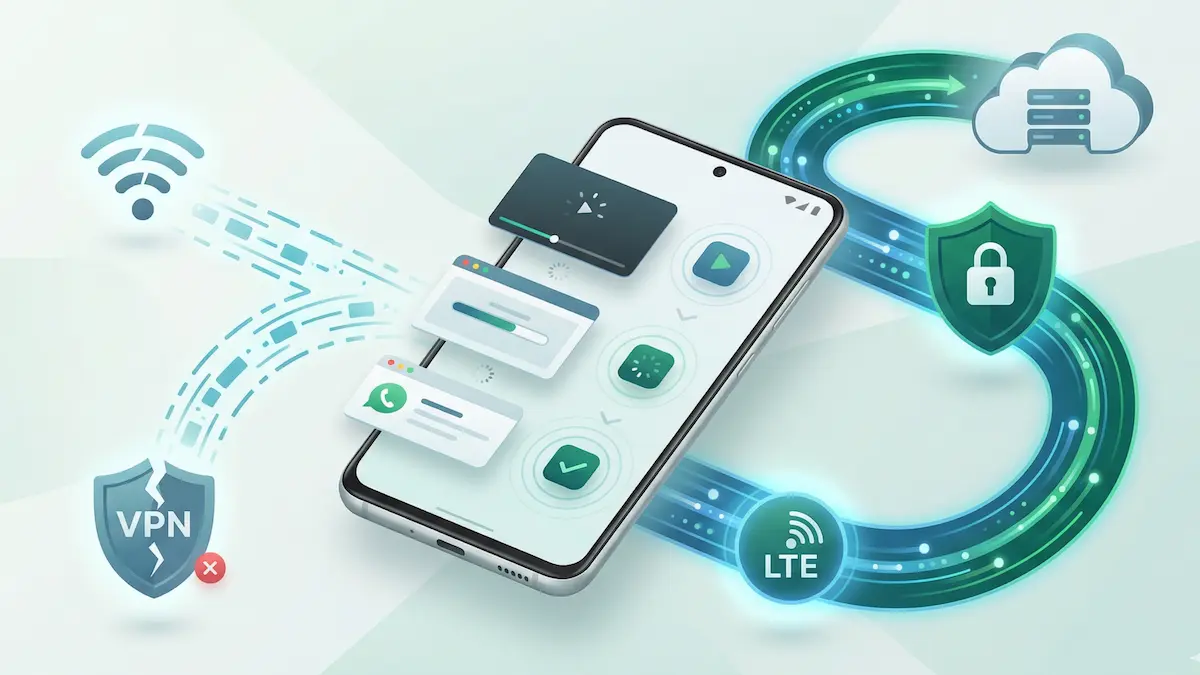
One frustrating Android problem is leaving Wi‑Fi, switching to mobile data, and then watching apps stall even though the VPN still looks alive.
This is usually a network handoff problem. The physical network under the VPN changes, but apps and the tunnel do not always recover cleanly at the same speed. The result can be stale sessions, temporary routing confusion, or a tunnel that appears connected while app traffic hangs.
Quick answer
- The handoff problem: Android changed the underlying network, but apps or the VPN may still be tied to stale state.
- The common symptoms: messages stop sending, streaming buffers, or the VPN appears connected while traffic stalls.
- The first fix: disconnect and reconnect the VPN after the network switch if recovery does not happen quickly.
- The practical reality: not every handoff issue has the same cause.
Quick routing: which guide fits your exact symptom?
- If you want a central map before opening deeper fixes: Android VPN Troubleshooting Hub
- VPN stays connected but nothing loads anywhere: VPN Connected But No Internet on Android
- disconnects mainly happen on Xiaomi, Redmi, or POCO devices: Fix Xiaomi, MIUI, and HyperOS VPN Reconnect Loops
- drops started after aggressive battery or background cleanup: VPN Battery Drain and Background Limits on Android
- you are deciding whether protocol choice is part of the problem: WireGuard vs XRay (VLESS/Reality) on Android
Step-by-Step Fixes for Wi‑Fi → Mobile Handoffs
1. Force a clean reconnect after the handoff
If the tunnel looks alive but traffic is not moving, the fastest first test is a clean reconnect.
The fix: Turn the VPN off, wait a few seconds, then reconnect after mobile data is fully active. This forces the app to build a fresh tunnel on the current network instead of trying to recover a stale one.
2. Restart the affected app if only one app is hanging
Sometimes the VPN recovers but a specific app keeps talking to an old connection state.
The fix: Force-stop the affected app and open it again after the network switch is complete. If the app works after restart, the issue may be stale app-level sessions rather than a full VPN failure.
3. Compare behavior with device smart-switching helpers
Some Android builds add automatic network-assist logic, which can make handoff behavior harder to predict.
The fix: Check whether your device uses automatic switching, adaptive connectivity, or similar helpers. If you see repeated instability during handoffs, compare behavior with those features on and off.
4. Check whether battery restrictions are slowing recovery
OEM battery tools can delay or interrupt the VPN app’s recovery logic during a handoff.
The fix: If your device is known for aggressive background management, review battery restrictions and background permissions. Related guide: Fix Xiaomi, MIUI & HyperOS VPN Reconnect Loops.
5. Compare protocol behavior only after the handoff is clean
A handoff problem can look worse on one protocol than another, but that does not always mean the protocol itself is the root cause.
The fix: Once the base handoff is stable, compare whether the same transition behaves differently with another protocol. Protocol context: WireGuard vs Xray (VLESS/Reality) on Android.
Why WiFi to Mobile Handoffs Break VPN Recovery
Android has to change the underlying route, refresh DNS state, and let the VPN app rebuild traffic on the new network. That handoff does not always happen in one clean instant.
The short version is that the radio changes faster than apps recover. A browser tab, a chat session, or a streaming app may still be tied to the old path while Android has already moved the device to mobile data. That gap is exactly where “VPN looks connected but traffic hangs” tends to appear.
Samsung, Xiaomi, and Pixel Behavior
Different Android vendors add their own battery and connectivity layers, so the same VPN can recover differently from one phone to another.
- Samsung: look for adaptive connectivity, WiFi assist behavior, and battery management that may pause recovery in the background.
- Xiaomi / MIUI / HyperOS: aggressive background limits are a common reason why the VPN process does not resume cleanly. See VPN battery drain and Android background limits if recovery feels delayed.
- Pixel: Pixels tend to be cleaner, but adaptive connectivity and app session state can still make one app fail even when the tunnel recovers.
If you need a broader umbrella guide for tunnel state problems after the handoff, read VPN connected but no internet on Android.
When a Short Drop Is Normal and When It Is a Bug
A very short pause during a network handoff is normal. If the VPN reconnects on its own and traffic resumes within a few seconds, that is usually just the expected transition window.
Treat it as a real bug when one of these happens:
- the VPN icon stays visible but apps remain frozen until you manually reconnect
- one app keeps hanging after every handoff
- the problem appears only on one phone brand or only with aggressive battery settings
Practical Expectations
- Short instability during a handoff can be normal: a brief reconnection window is not always a sign of a bug.
- Persistent stalls are the real problem: if apps stay frozen until you manually reconnect, that is worth troubleshooting.
- Different phones behave differently: OEM battery tools and Android skins can change how fast a VPN recovers after a network switch.
FAQ
Why does the VPN icon stay visible if my apps are frozen?
Because the VPN service may still be active while the underlying network state or app sessions have not recovered cleanly.
Is this a VPN bug or an Android bug?
It can be either, or a mix of both. Android network changes, app session behavior, and OEM background policies all matter.
Will changing protocols always fix handoff problems?
No. It can help in some cases, but many handoff issues are more about recovery state than about protocol choice alone.
How NimbusVPN Fits
NimbusVPN gives you practical Android controls for testing whether the problem is the tunnel itself, the app session, or the underlying network transition.
- Protocol flexibility: You can compare behavior across different connection methods.
- Android-first troubleshooting: The app fits real Android mobility scenarios where Wi‑Fi and mobile data transitions matter.
- Routing awareness: Once the handoff is stable, you can separately test whether routing or app-specific behavior is still causing trouble.
If the issue turns out to be app-specific rather than a full tunnel failure, continue with Split Tunneling on Android. If the handoff problem keeps pointing back to protocol behavior, compare Best VPN Protocol for Android and Android VPN Troubleshooting: 12 Common Fixes.