
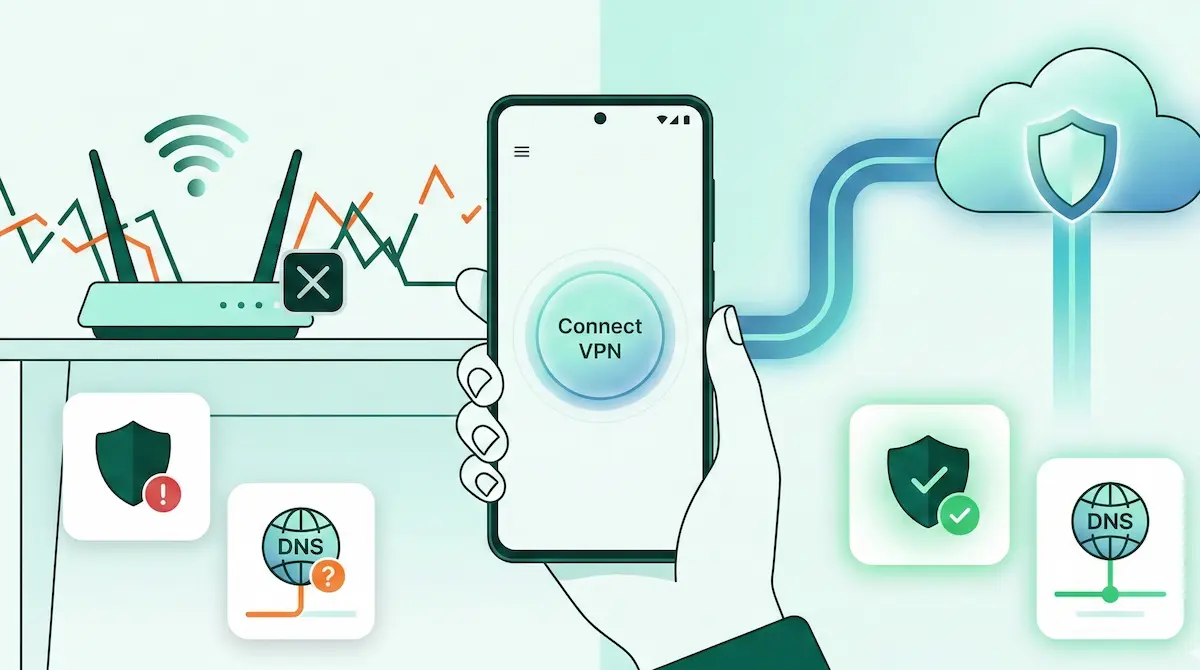
VPN Not Working on WiFi on Android: Fix Guide (2026)
A common Android issue is when a VPN works normally on mobile data but fails on WiFi. The VPN may not connect at all, or it connects but apps cannot load anything.
This situation usually does not mean the VPN app is broken. In many cases, the WiFi network itself is the cause. Routers, hotel networks, school systems, or restrictive public WiFi can interfere with VPN traffic.
The good news is that most of these problems are easy to diagnose. With a few simple checks, you can usually determine whether the issue is caused by the network, Android settings, or VPN protocol compatibility.
This guide walks through the most common causes and fixes step by step.
Quick Summary
- If VPN works on mobile data but not WiFi, the WiFi network is often the cause.
- Restrictive networks (hotel, school, office) may block or limit VPN traffic.
- Private DNS and router DNS filtering can interfere with VPN connections.
- Captive portal login pages must be completed before using VPN.
- Switching protocols (WireGuard ↔ XRay) can help on restrictive networks.
- Split Tunneling can solve issues where only certain apps fail.
- Restarting the device or reconnecting WiFi can clear temporary network states.
Why VPN works on mobile data but not WiFi
Mobile networks and WiFi networks behave very differently.
Mobile data connections are usually managed by large network providers with consistent routing rules. VPN connections generally work reliably there because the network is designed to support a wide range of traffic.
WiFi networks, however, are controlled by routers or local administrators. These networks may apply:
- firewall rules
- DNS filtering
- parental control systems
- network monitoring tools
- captive portals (login pages)
Because of this, a VPN connection that works on mobile data can fail on WiFi. The VPN tunnel may connect, but the network may block or interfere with encrypted traffic.
That is why troubleshooting WiFi-specific behavior is important when diagnosing VPN problems.
Quick diagnostic test (1-minute check)
Use this quick checklist to identify where the problem likely comes from.
-
Turn off VPN.
Check if the internet works normally on WiFi. -
Switch to mobile data.
Turn the VPN back on and test again. -
Compare results.
- Works on mobile data but not WiFi → likely a WiFi restriction.
- Fails everywhere → check Android settings or server location.
-
Switch server location once.
Try a nearby server. -
Switch VPN protocol.
If using WireGuard, try XRay (VLESS/Reality), or vice versa.
This quick test usually reveals whether the issue is network-related or configuration-related.
Troubleshooting by cause
1. Restrictive WiFi networks
Public WiFi, school networks, and office networks sometimes limit VPN traffic.
Fixes
- Switch VPN protocol.
- Try a nearby server location.
- Disconnect and reconnect WiFi.
- Test on another WiFi network or mobile hotspot.
Protocol suggestion
XRay (VLESS/Reality) may work better on restrictive networks.
2. Router DNS filtering
Some routers filter DNS queries or block specific domains. This can break browsing while the VPN appears connected.
Fixes
- Restart the router.
- Disable parental control or DNS filtering if possible.
- Temporarily disable Private DNS on Android.
- Try a different WiFi network to confirm the router is the cause.
Protocol suggestion
WireGuard usually works fine once DNS issues are resolved.
3. Private DNS conflicts
Private DNS can conflict with VPN DNS routing.
Fixes
- Go to Settings → Network & Internet → Private DNS.
- Set Private DNS to Off temporarily.
- Reconnect the VPN.
- Test again.
Protocol suggestion
WireGuard is a good first test after adjusting DNS settings.
4. Captive portal networks (hotel WiFi login pages)
Many hotels and airports require a login page before granting internet access.
If VPN is enabled first, the login page may never appear.
Fixes
- Disconnect VPN.
- Open a browser and complete the WiFi login page.
- Confirm internet works.
- Reconnect VPN.
Protocol suggestion
Start with WireGuard. If blocked, try XRay (VLESS/Reality).
5. Firewall rules on school or office networks
School and corporate networks may apply firewall rules that block unknown VPN patterns.
Fixes
- Switch VPN protocol.
- Try connecting through a different WiFi network if possible.
- Test on mobile hotspot to confirm the restriction.
- Use Split Tunneling for apps that must bypass VPN.
Protocol suggestion
XRay (VLESS/Reality) can sometimes work better on filtered networks.
6. VPN protocol compatibility
Some networks interact differently with VPN protocols.
Fixes
- Switch protocol:
- WireGuard → XRay
- XRay → WireGuard
- Keep the server location the same while testing.
- Reconnect after switching.
Protocol suggestion
WireGuard for normal networks, XRay for restrictive ones.
7. Router-level blocking of VPN traffic
Some routers or ISP configurations block VPN traffic patterns.
Fixes
- Restart the router.
- Check router settings for VPN filtering or parental controls.
- Test using a mobile hotspot.
- Switch protocol.
Protocol suggestion
Try XRay (VLESS/Reality) if the router blocks typical VPN patterns.
8. Android battery or background restrictions
Battery optimization settings can pause background networking.
Fixes
- Set VPN app battery usage to Unrestricted.
- Disable aggressive power-saving modes.
- Reconnect the VPN.
- Test again after locking and unlocking the device.
Protocol suggestion
WireGuard is usually stable once battery restrictions are removed.
9. Incorrect network state or cached connections
Android sometimes keeps cached network states that interfere with VPN traffic.
Fixes
- Toggle airplane mode on and off.
- Restart the phone.
- Forget and reconnect the WiFi network.
- Reconnect the VPN.
Protocol suggestion
Protocol usually does not matter here.
10. App-specific routing conflicts
Some apps behave differently on VPN connections.
Fixes
- Clear cache for the affected app.
- Use Split Tunneling:
- exclude the problematic app
- or include only specific apps
- Restart the app after adjusting routing.
Protocol suggestion
Protocol switching usually is not necessary here.
Protocol switching (WireGuard vs XRay)
Changing VPN protocol can help when the current network interferes with VPN traffic.
WireGuard
- Good default for most networks
- Simple and widely supported
- Works well on typical home WiFi
XRay (VLESS/Reality)
- Sometimes more compatible with restrictive networks
- Useful on school, work, or filtered WiFi networks
Protocol switching is mainly a compatibility tool. It does not guarantee faster speeds.
When Split Tunneling helps
Split Tunneling allows only certain apps to use the VPN while others connect directly to the internet.
This can help when:
- one app fails on VPN
- streaming apps behave differently on WiFi
- banking apps reject VPN connections
Two approaches:
Include mode
Only selected apps use the VPN.
Exclude mode
Most apps use VPN, but specific apps bypass it.
Testing one app at a time is usually the easiest way to diagnose routing issues.
Special cases
Hotel WiFi networks
Hotel WiFi often requires login pages and may limit encrypted traffic. Always complete the login page before enabling VPN.
School or campus WiFi
Campus networks sometimes restrict VPN patterns. Switching protocol or using mobile data may help.
Work networks with strict firewall rules
Corporate networks may block unknown VPN traffic. Protocol switching or Split Tunneling may be required.
Home routers with parental controls or DNS filtering
Parental control systems sometimes block encrypted traffic or DNS queries. Restarting the router or adjusting filtering settings may resolve the issue.
Android TV note
The same WiFi-related VPN issues can occur on Android TV devices.
Troubleshooting steps are similar:
- reconnect WiFi
- reboot the TV box
- switch VPN protocol
- check router restrictions
NimbusVPN supports Android TV with a remote-friendly interface, so the same protocol and Split Tunneling options can be used.
FAQ
Why does my VPN work on mobile data but not WiFi?
WiFi networks may apply firewall rules, DNS filtering, or other restrictions that interfere with VPN traffic.
Can WiFi routers block VPN connections?
Yes. Some routers or networks block VPN traffic patterns or encrypted connections.
Does Private DNS interfere with VPN?
It can. Private DNS may conflict with VPN DNS routing and cause connection problems.
Should I change VPN protocol?
Yes, switching between WireGuard and XRay can help if the WiFi network restricts certain VPN traffic patterns.
Why do some apps work but others fail on WiFi?
Some apps handle VPN routing differently. Split Tunneling can help resolve these conflicts.
Can hotel WiFi block VPN?
Some hotel networks restrict VPN traffic or require login pages before allowing internet access.
Does restarting the router help?
Yes, restarting the router can reset network states and fix DNS or routing problems.
Why does VPN connect but nothing loads?
This usually happens due to DNS conflicts, restrictive networks, or router filtering.
How NimbusVPN fits
NimbusVPN provides practical tools for troubleshooting VPN connectivity on Android:
- Supports WireGuard and XRay (VLESS/Reality) protocols
- Includes Split Tunneling for app-specific routing
- Works on Android TV with a remote-friendly interface
- Allows users to test protocol compatibility on different networks
- Useful for privacy on public or shared WiFi
If you want an Android VPN that lets you switch protocols and control routing when troubleshooting network issues, NimbusVPN is a practical option.
Related articles to write next
- VPN Connected but No Internet on Android
- Split Tunneling on Android: Practical Presets
- WireGuard vs XRay (VLESS/Reality) on Android